Capitol Communicator Staff only · not linked from the site

0 of 28 done

Staff guide

Publishing on Capitol Communicator

How to publish, update and feature stories on the new capitolcommunicator.com. Each section is one task, in the order we cover them in training.

Ghost 6 · As of 20 Oct 2026 · Before the Signals Desk build-out

How this guide works

Go one step at a time with Back and Next, or the arrow keys. When you've finished a step, tick Done. The guide remembers your ticks and the step you were on, so you can stop at any point and pick up there later.

Prepared by Fabric for Capitol Communicator. Screenshots of the editor come from a local copy of the site on Ghost 6.57; the site itself runs a newer Ghost 6, so a label here and there may differ slightly. The site screenshots come from the new site itself. This guide covers publishing before the Signals Desk section is built; it will be updated in 2027. Questions or something looks wrong: ask Geoff Katz.

01 · Before you start

The one rule

The one rule

Publish only. Never publish and email.

When you publish, Ghost offers to email the story to every subscriber of The Brief, and that option is already selected. An email can't be unsent. The Brief goes out twice a week as its own issue, so for every story you publish, switch it to Publish only. Step 6 of section 03 shows where. The one exception is an issue of The Brief itself: section 11.

01 · Before you start

Sign in

  • Go to capitol-communicator.ghost.io/ghost. After cutover the address is capitolcommunicator.com/ghost.
  • The first time you sign in on a computer, Ghost emails you a code to confirm it's you. Enter it and that computer is remembered.
  • Use your own invitation. Accounts aren't shared, so the site can show who published what.
Until cutoverKeep publishing on WordPress. Each morning around 7:15 ET, the new site copies the new WordPress stories and matches the live homepage lead, so anything you change on the new site's homepage is reset the next morning. Practice with drafts, and delete them when you're done.

01 · Before you start

Who can do what

RoleWhoCan
AdministratorPaulEverything: publish, settings, navigation, staff, sponsors and ads
EditorJessikaPublish and edit anyone's stories, manage tags, invite writers
ContributorGuest and sponsor bylinesWrite drafts only. An editor or administrator publishes them

02 · Find your way around

The posts list is home base

Ghost Admin posts list with four numbered callouts: New post, a story row, the featured star, and Filter
The posts list. The member count in the left column is hidden in this guide.

Ghost opens on Analytics. Click Posts in the left column to see every story, newest first.

  1. New post starts a story. The + beside Posts in the left column does the same.
  2. Click any story to open it in the editor.
  3. A star means the story is in the homepage lead. See section 05.
  4. Filter narrows the list by status, tag or author.

The rest of the left column: Pages holds About, Contact and the sponsor and ad records. Tags are the site's sections. Members lists subscribers; leave it alone unless you're told otherwise.

03 · Publish a news story

Start a new post

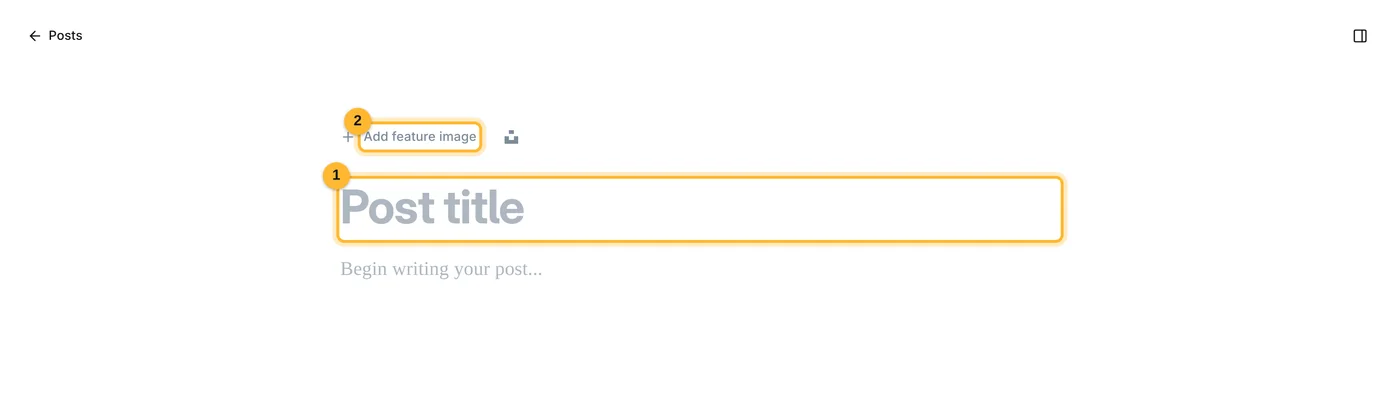
Blank Ghost editor with the post title and Add feature image marked

From headline to live in eight steps. This example is a made-up agency hire. Every story follows the same steps.

Click New post. The editor opens on a blank page.

  1. Post title is the headline. Write it in sentence case, as you do now; the site sets headlines in capitals.
  2. Add feature image sets the photo for the story and the homepage.

03 · Publish a news story

Add the photo, headline and story

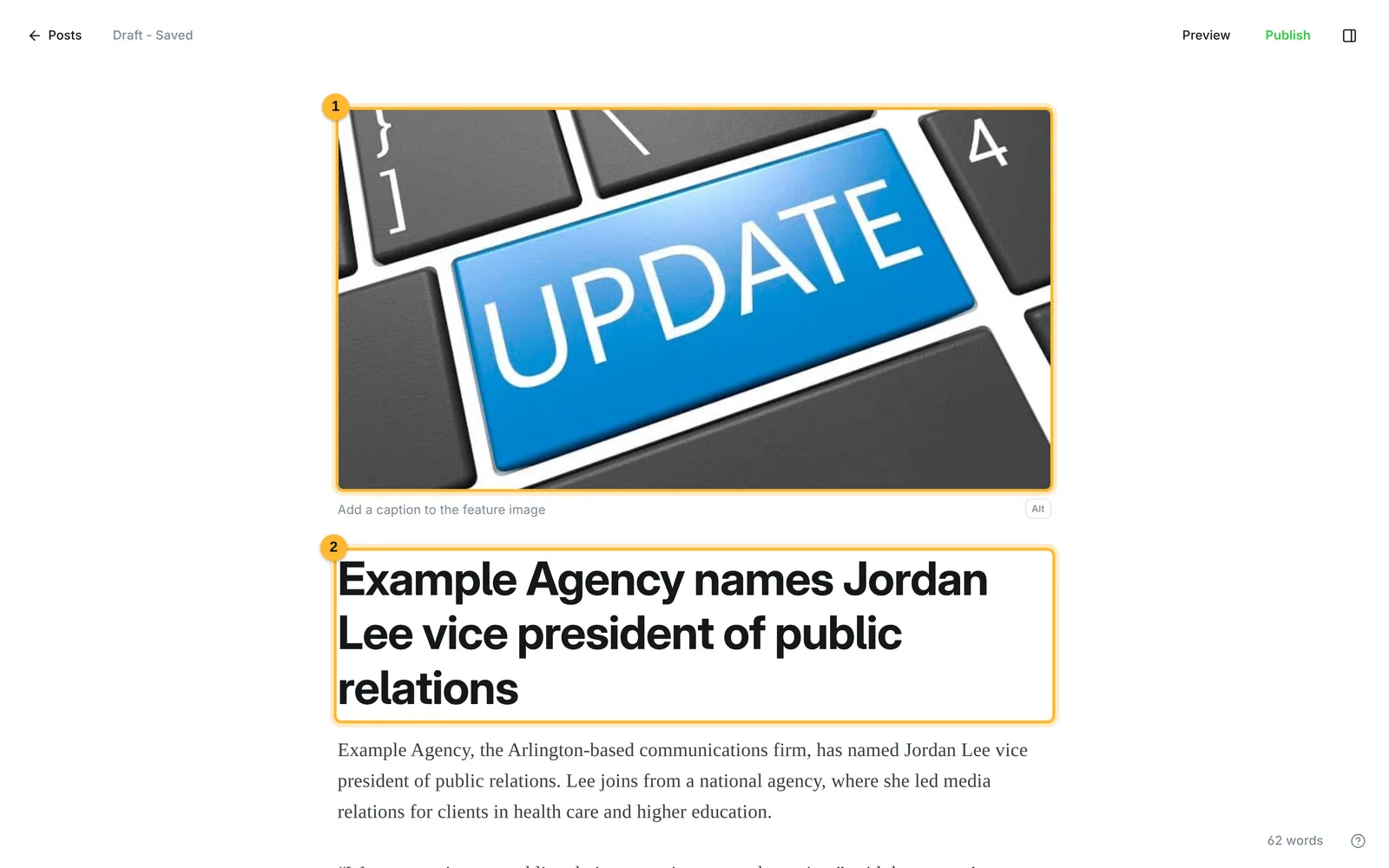
Editor with an UPDATE photo as the feature image, a headline and two paragraphs

Press Enter after the headline and type or paste the story. Pasting from Word, Google Docs or an email keeps paragraphs, bold and links. Select any words to bold them or add a link.

  1. Use a landscape photo at least 1200 pixels wide. Click under it to add a caption or photo credit. Alt describes the photo for screen readers.
  2. The headline. Ghost saves as you type, and Saved appears at the top left.

03 · Publish a news story

Fill in the post settings

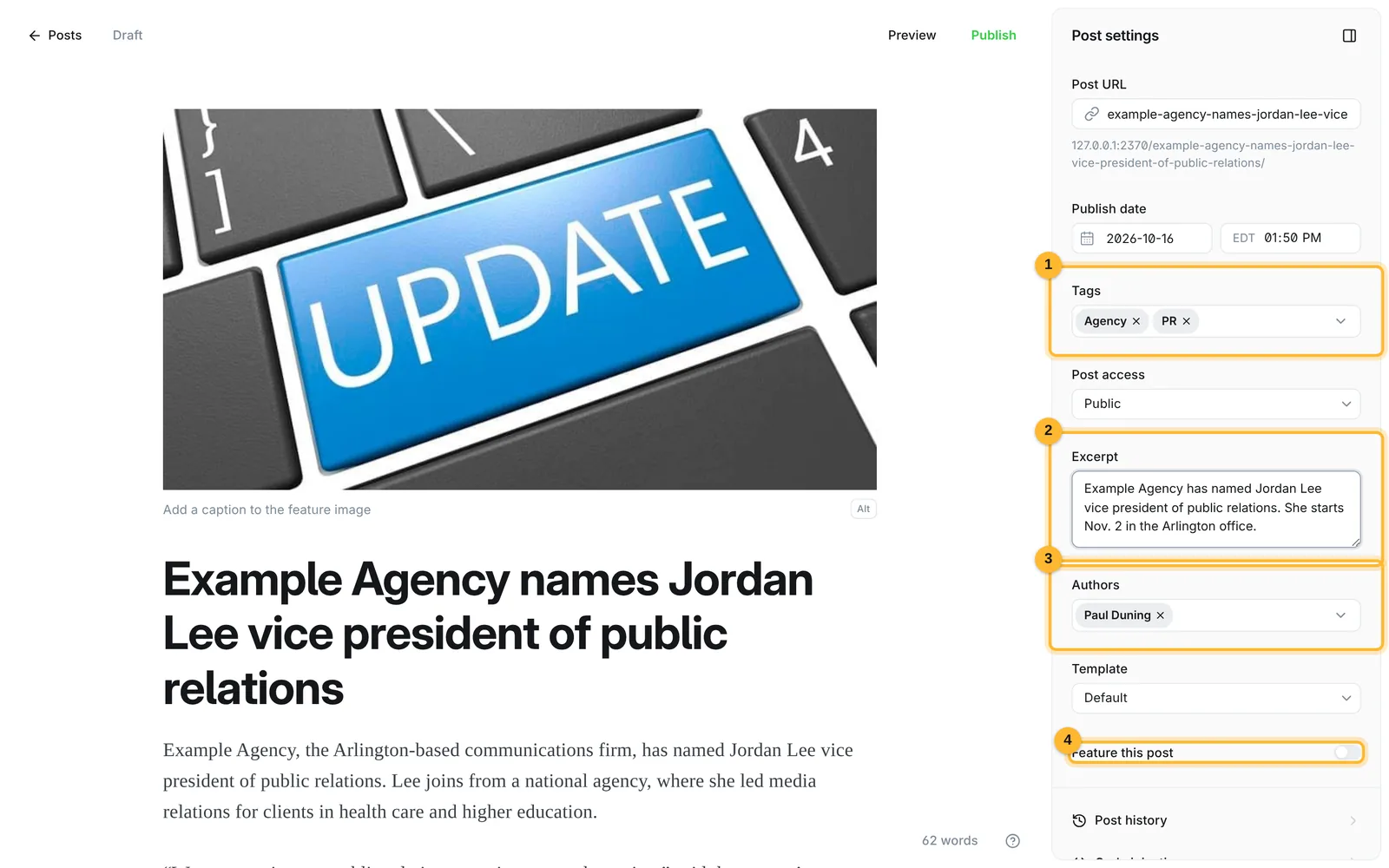
Post settings panel with Tags, Excerpt, Authors and Feature this post marked

Click the panel icon at the top right to open Post settings.

  1. Tags. The first tag is the section. It sets the colored label on the story and where it's filed. Pick one of the sections below, then add topic tags after it.
  2. Excerpt is the one or two sentences under the headline on the homepage and in social shares. Up to 300 characters.
  3. Authors is the byline. Sponsor content goes under the sponsor's own author.
  4. Feature this post puts the story in the homepage lead. Leave it off unless you're changing the lead.
MarketingAdvertisingPRMediaDigitalAgencyPeopleEventsJobs

Leave Post URL as Ghost writes it from the headline, and leave Post access on Public.

03 · Publish a news story

Preview it

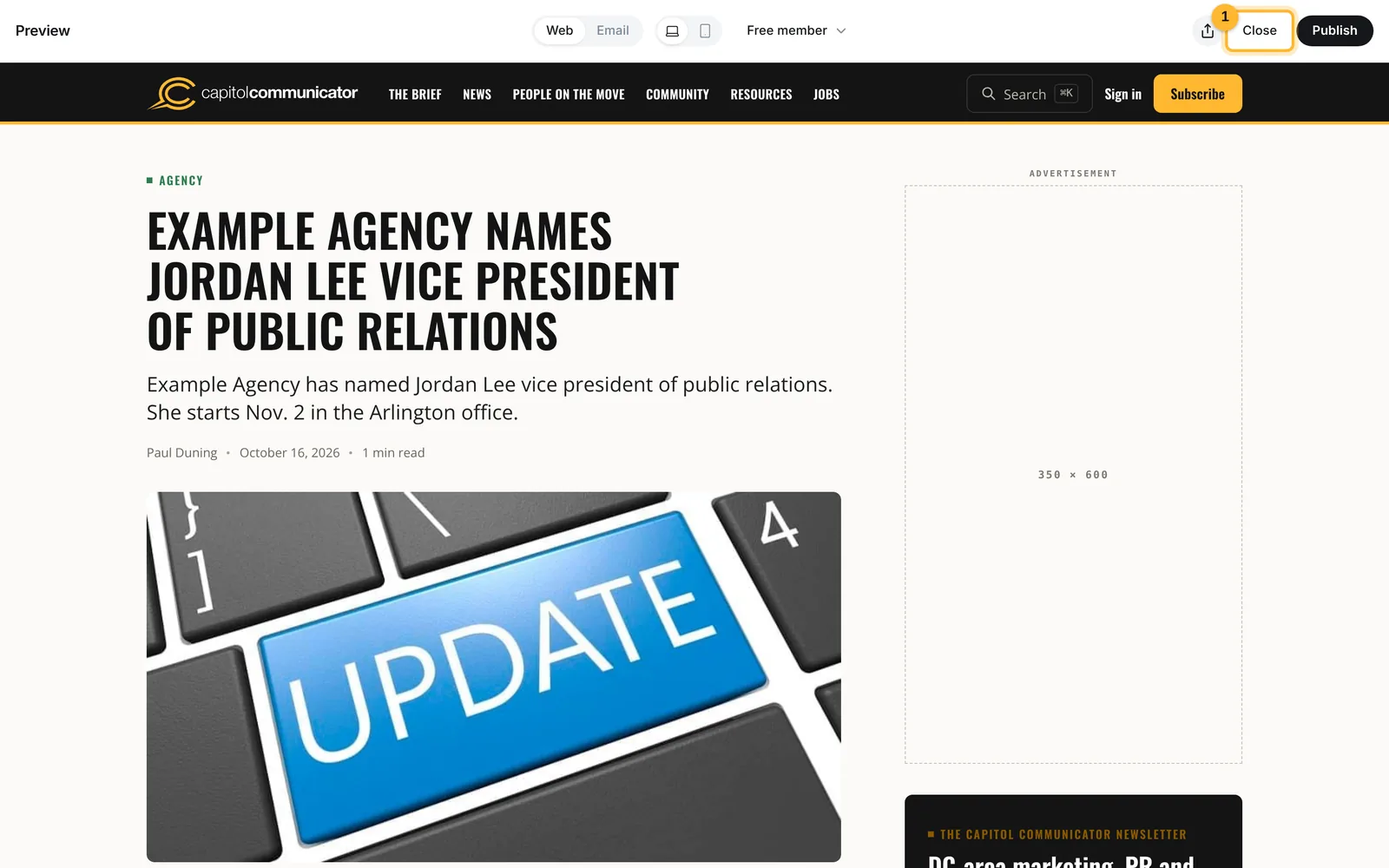
Preview of the story in the Capitol Communicator design, with Close marked

Click Preview at the top to see the story as readers will, then Close.

03 · Publish a news story

Click Publish, and read the first line

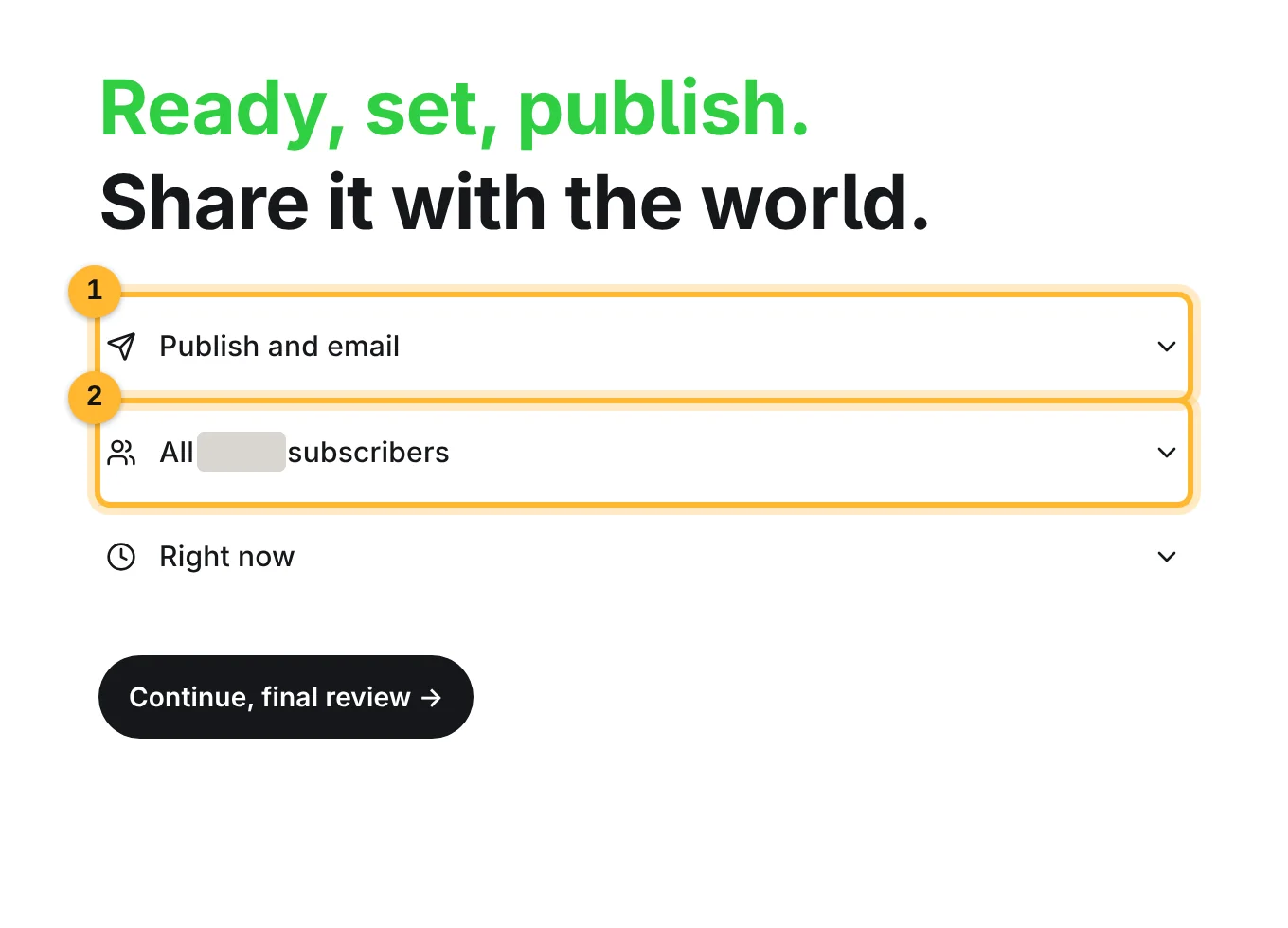
Publish screen showing Publish and email to all subscribers

Click Publish at the top right. The first line starts on Publish and email, aimed at all subscribers. Don't continue from here.

  1. Click Publish and email to open the choices.
  2. The audience the email would go to. The count is hidden in this guide.

03 · Publish a news story

Choose Publish only

Publish choices with Publish only marked
  1. Pick Publish only. Never pick Email only.

03 · Publish a news story

Check that it isn't going out as a newsletter

Publish screen showing Publish only and Not sent as newsletter
  1. The second line now reads Not sent as newsletter. If it names subscribers, go back to step 6.
  2. Click Continue, final review.

03 · Publish a news story

Publish

Final review with the Publish post, right now button marked
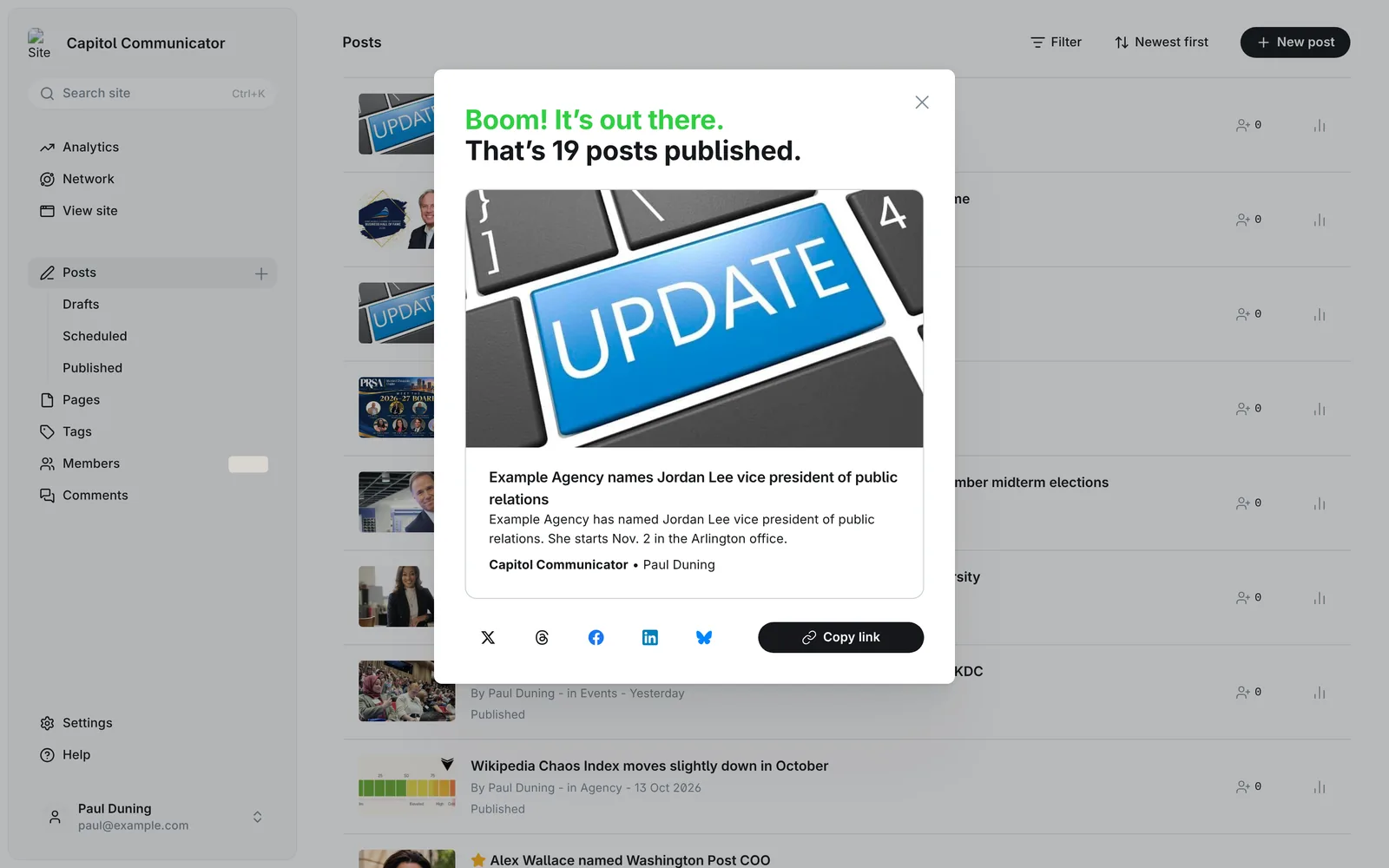
Confirmation that the post is out, with share buttons and Copy link

The line above the button says Your post will be published on your site, with no mention of email. Click Publish post, right now.

The story is live, and Ghost offers a link to copy and share buttons.

04 · People on the Move

A move is a story tagged People

The Jasmine Gurley story open in the editor with settings showing People as the first tag

Hires, promotions and retirements are ordinary stories with two differences: the photo is a headshot, and People is the first tag. Here is how the Jasmine Gurley announcement is set up.

  1. The headshot is the feature image. The People page crops photos square and keeps the top of the frame, so use a photo with the face in the upper half and some room around it.
  2. People first. A second section, such as Media or PR, is fine after it. Leave tags that start with # alone: they're internal markers from the move off WordPress, and readers never see them.
  3. The excerpt says who, the new title and where, in one sentence.

04 · People on the Move

Headlines and the People page

The People on the Move page on the new site, a grid of square headshots

Headlines follow one pattern: Name named title at organization, such as "Alex Wallace named Washington Post COO".

Once published, the story appears on the People on the Move page.

05 · Choose the homepage lead

Stars decide the top of the homepage

The new site's homepage with the large lead story and the two cards under it marked

The top of the homepage shows the three newest starred stories. Starring a story means turning on Feature this post in its settings.

  1. The lead story is the newest starred story. It needs a good landscape photo.
  2. The first card is the second-newest starred story.
  3. The second card is the third-newest starred story.

If fewer than three stories are starred, the newest unstarred stories fill the gaps.

05 · Choose the homepage lead

To change the lead

  1. Open the story you want at the top, open Post settings, turn on Feature this post and click Update.
  2. Open the story that should drop out, turn Feature this post off and click Update.
  3. Keep three stories starred. The stars in the posts list show which they are.
Until cutoverEach morning's copy from WordPress resets the stars to match the live site's top story slot. Stars you set on the new site last until the next morning.

06 · Drafts and scheduling

Save it now, publish it later

Publish screen with Right now opened and Schedule for later marked

Drafts save themselves. Anything you start stays a draft until you publish it, and Saved at the top left confirms it. Close the editor whenever you like.

To schedule a story, follow the publish steps, and on the publish screen open the third line, Right now. Pick Schedule for later and set the date and time, in Eastern time. Check that the first line still says Publish only.

06 · Drafts and scheduling

Find drafts and scheduled stories

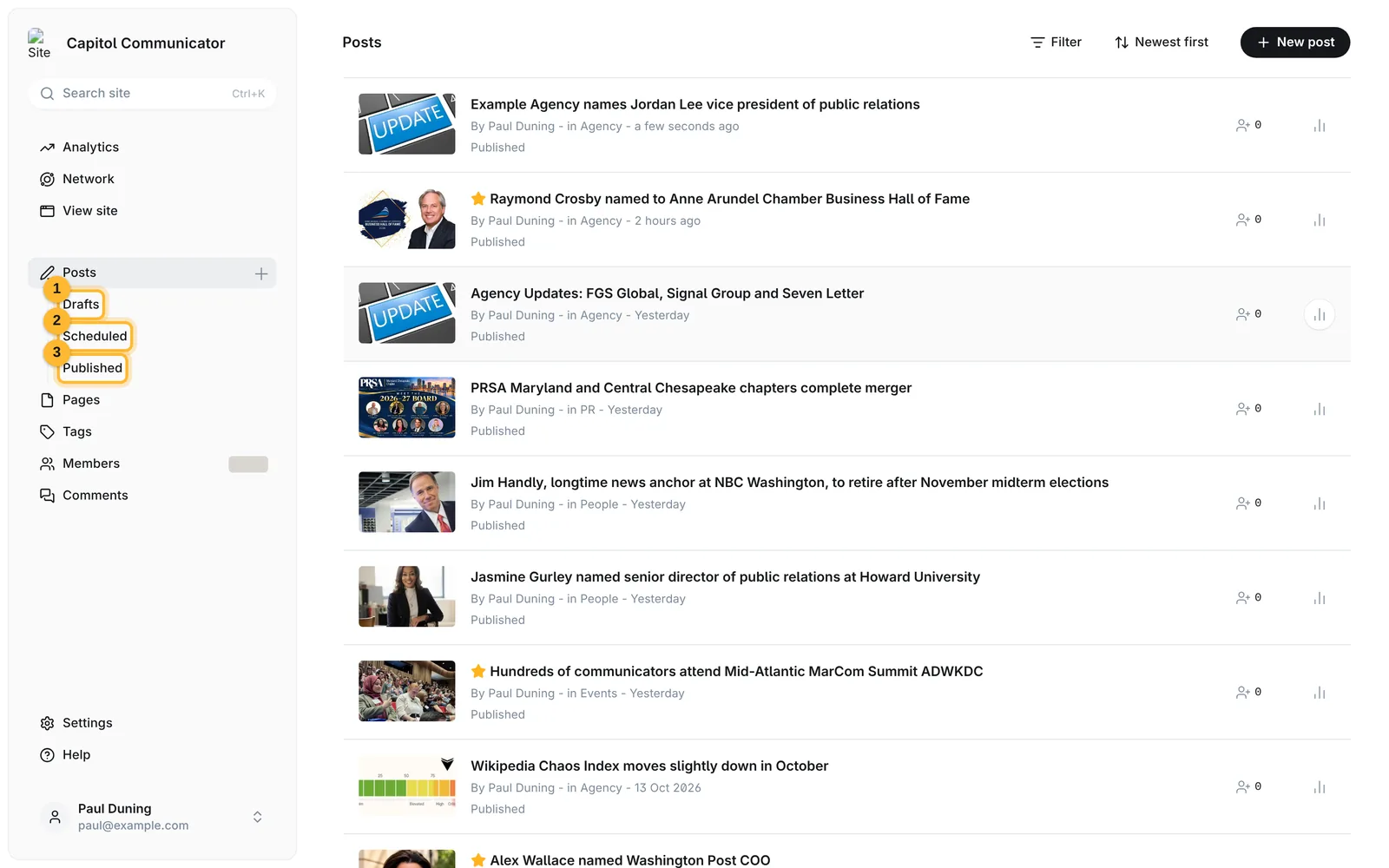
Posts list with the Drafts, Scheduled and Published links marked in the left column

Use the links under Posts in the left column.

  1. Drafts: started, not published.
  2. Scheduled: set to go live at a future time. Open one to change the time or switch it back to a draft.
  3. Published: live on the site.

07 · Fix or take down a story

Edit, then Update

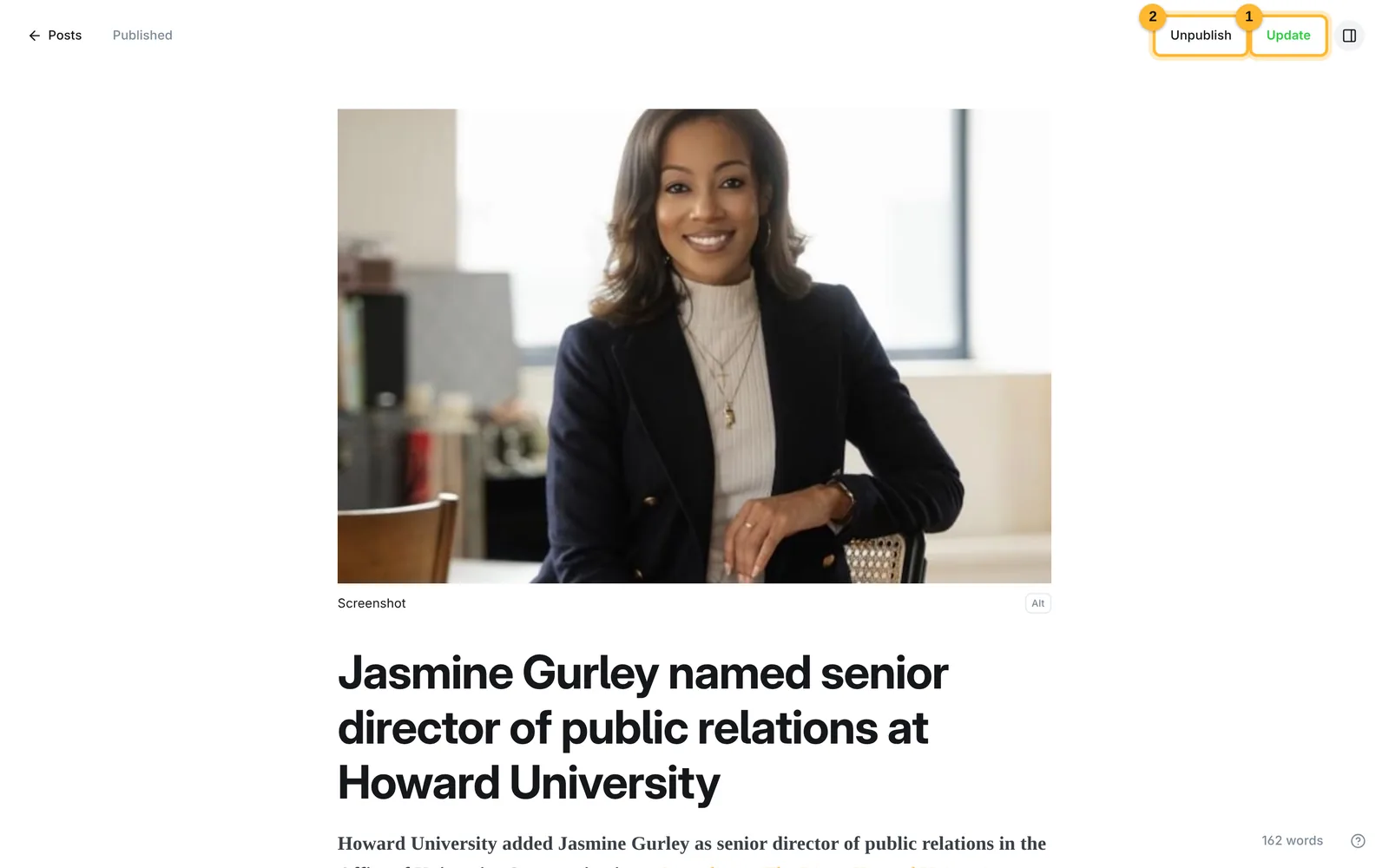
A published story open in the editor with Update and Unpublish marked at the top right

Open a published story from the posts list, make the change, and click Update. The change is live at once, and updating never sends an email.

  1. Update saves your changes to the live story.
  2. Unpublish takes the story down and turns it back into a draft. Use it for anything that needs to come off the site quickly.
Two things not to doDon't delete a published story: delete is permanent, and every link to it breaks. Unpublish it instead. Don't change the Post URL of a published story either, for the same reason.

08 · Photos, video, links and PDFs

Everything else goes on its own line

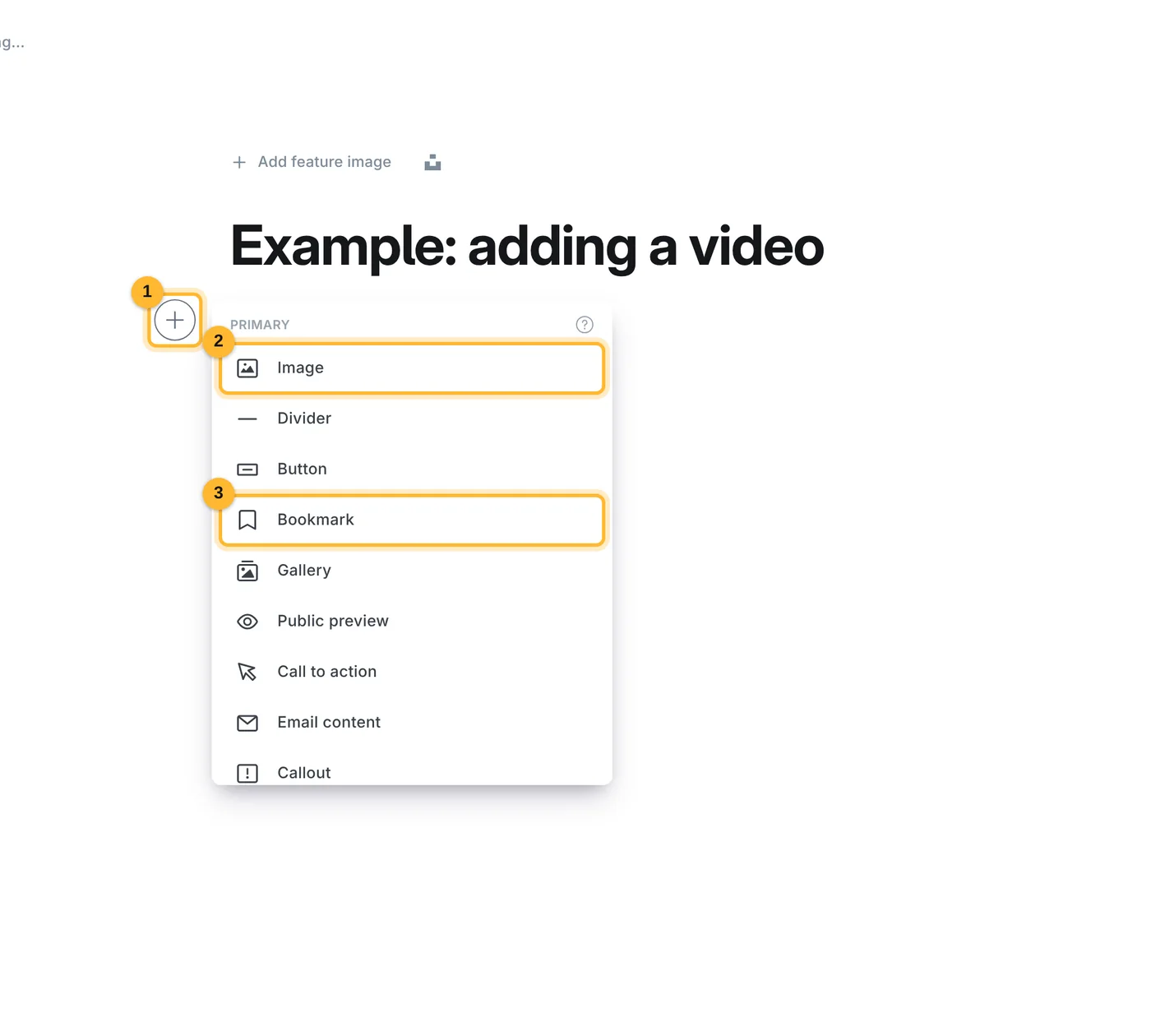
The editor's add-card menu with the plus button, Image and Bookmark marked

Start a new line in the story and click the + that appears at the left, or type / to search the full list.

  1. The + button appears on any empty line.
  2. Image adds a photo inside the story. Gallery, just below, sets several side by side.
  3. Bookmark turns a link into a preview card with the page's title and image.
  • Video and social posts: paste a YouTube, Vimeo or X link on its own line and Ghost turns it into the embedded video or post.
  • PDFs: type /file and upload it. Readers get a download link.
  • Pasted embed code, such as a form or a player you were sent: type /html and paste it in. Preview before you publish.

09 · Quick reference

Where everything is

ToGo toThen
Start a storyPostsNew post
Set the sectionPost settings → TagsFirst tag = section
Write the homepage summaryPost settings → ExcerptOne or two sentences
Publish without emailingPublishPublish and email → Publish only → Continue → Publish post
SchedulePublishRight now → Schedule for later
Put a story in the leadPost settingsFeature this post on → Update
Fix a live storyOpen itEdit → Update
Take a story downOpen itUnpublish
Find drafts and scheduled storiesPosts in the left columnDrafts · Scheduled
Add video or a social postA new linePaste the link
Add a PDFA new lineType /file
Send The BriefPreview → Email → Test, then PublishPublish and email → Schedule for later, 09:00 → Publish & send

10 · The training session

One hour, everyone on their own laptop

Each person signs in to the new site on their own computer and works along with sections 01 to 08. Bring one real press release and one real People on the Move announcement to practice with. Whoever builds The Brief goes through section 11 separately.

TimeSectionHands-on
0:0001 Before you startEveryone signs in and enters the emailed code. Read the one rule aloud.
0:0502 Find your way aroundOpen three stories from the posts list.
0:1003 Publish a news storyBuild a draft from the press release: photo, section tag, excerpt, preview. Go through the publish screens to the final review, then click Back to settings and stop there.
0:3004 People on the MoveBuild the announcement as a draft with a headshot and People as the first tag.
0:4005 Choose the homepage leadFind the three starred stories. Discuss which would lead today.
0:4506 Drafts and schedulingSchedule the practice story for next week, then find it under Scheduled and switch it back to a draft.
0:5007 and 08Paste a YouTube link into a draft. Open a published story and find Update and Unpublish without clicking them.
0:55Wrap-upAgree who publishes each day and who sets the lead. Delete the practice drafts.
Before the sessionEveryone accepts their Ghost invitation and signs in once, so the emailed code isn't a surprise in the room. The person running the session has this guide open on a second screen.

11 · Send The Brief

Two issues a week

The Brief goes to every subscriber twice a week, and each issue has its own focus.

IssueGoes outWhat's in it
EventsMon 9:00 ETWhat's on in the region in the coming weeks: events, awards, deadlines
NewsThu 9:00 ETThe week's stories, biggest first, with People on the Move

Each issue is a post tagged #the-brief. You build it by hand in the editor, send yourself a test, then schedule it with Publish and email. It also appears on the site's The Brief page.

The one exception

An issue of The Brief is the only post you publish and email.

Every other story stays Publish only, as in the one rule. An email can't be unsent, so every issue gets a test send first.

11 · Send The Brief

Start the issue

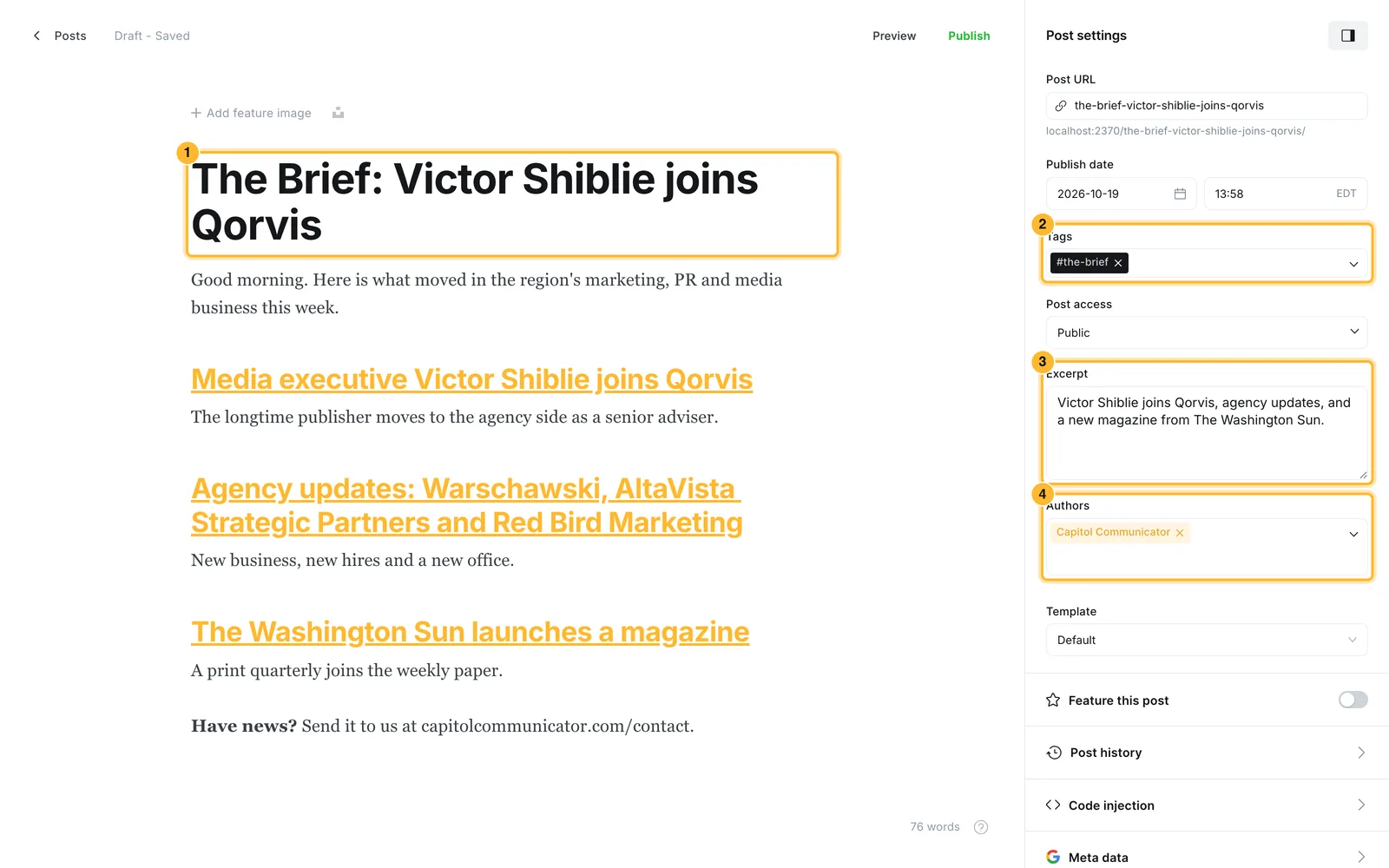
A Brief issue in the editor with Post settings open: the title, the #the-brief tag, the excerpt and the Capitol Communicator byline marked

Click New post, as for a story, and open Post settings.

  1. The title is the email's subject line. Start with "The Brief:" and the issue's top item, such as "The Brief: Victor Shiblie joins Qorvis".
  2. Tags: #the-brief, and no section tag. It files the issue on The Brief page. Type it with the #.
  3. Excerpt is the short line many inboxes show after the subject. One sentence that names two or three items.
  4. Authors: Capitol Communicator, so the byline is the publication, not a person.

Leave the feature image empty and Feature this post off.

11 · Send The Brief

Write the issue

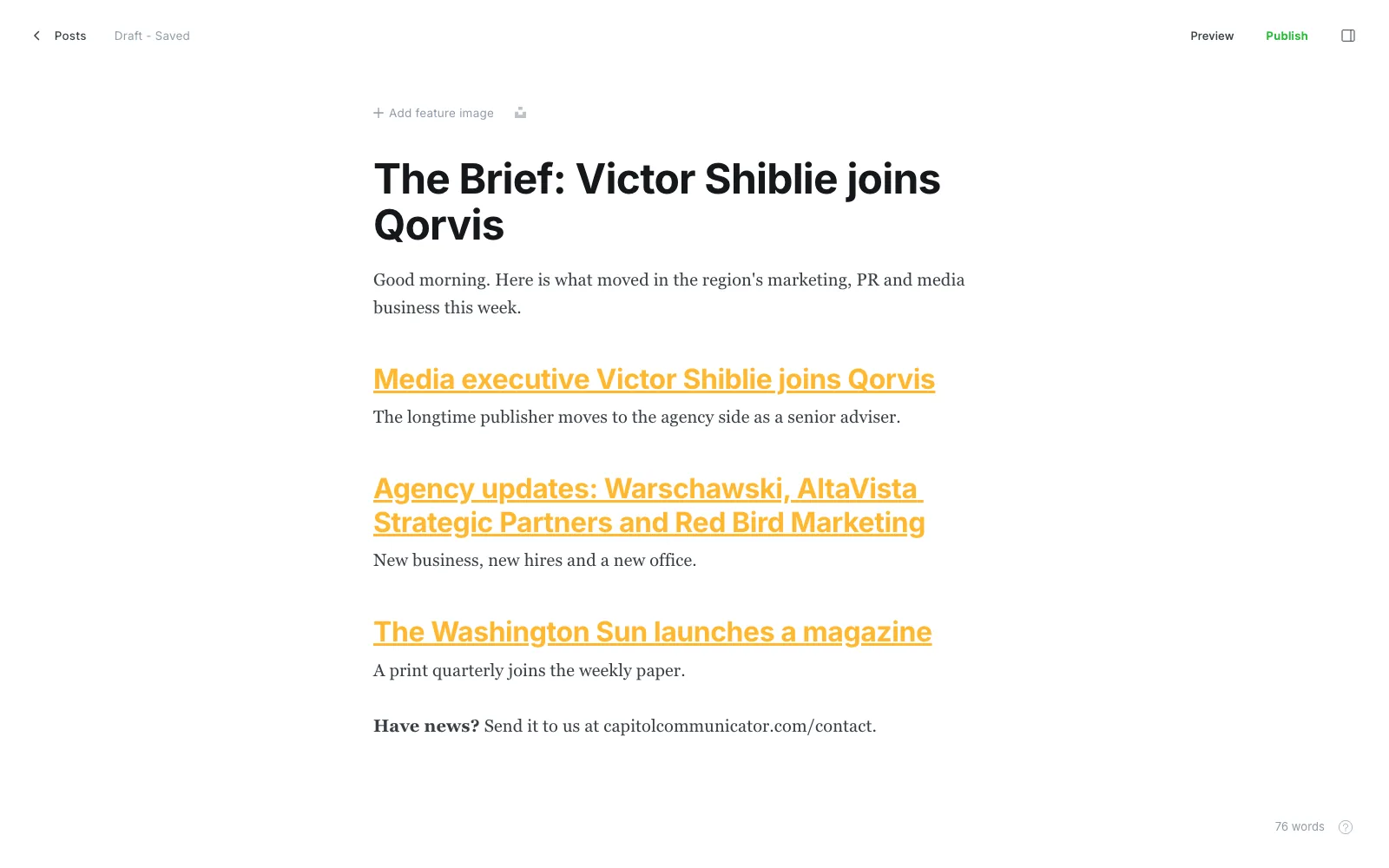
A Brief issue in the editor: a short opening line, then three linked headlines, each with one sentence under it
  • Open with a line or two in your own voice.
  • Then one item at a time: the headline as a link, and one sentence under it. Type the headline, select it, press ⌘ K (Ctrl K on Windows) and paste the story's address from the site.
  • Monday, events: the event's name as the link (to its listing or tickets), then the date, the place and one line on why to go.
  • Thursday, news: the week's stories, biggest first. Put People on the Move together near the end.
  • Close with how to send news in: capitolcommunicator.com/contact.

Pasting from a draft in Word or Google Docs keeps the links. Ghost saves as you go.

11 · Send The Brief

Send yourself a test

Preview of the issue as an email, with the Email tab, the Subject line and the Test button marked
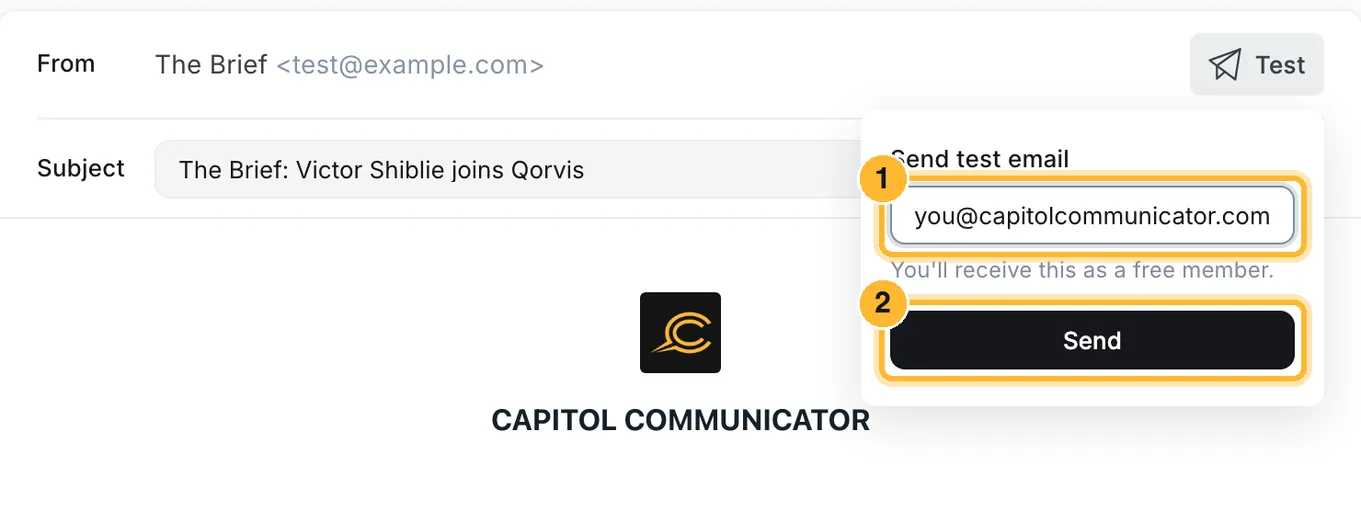
The Send test email box with the address field and the Send button marked

Click Preview at the top, then:

  1. Email shows the issue as subscribers will get it.
  2. Subject is the title. Change the title in the editor if it needs fixing.
  3. Test opens the test send.

In the box that opens, put in your own address and click Send. Only you get it. Open it on your phone and your computer, and click every link.

11 · Send The Brief

Publish and email, at 9:00

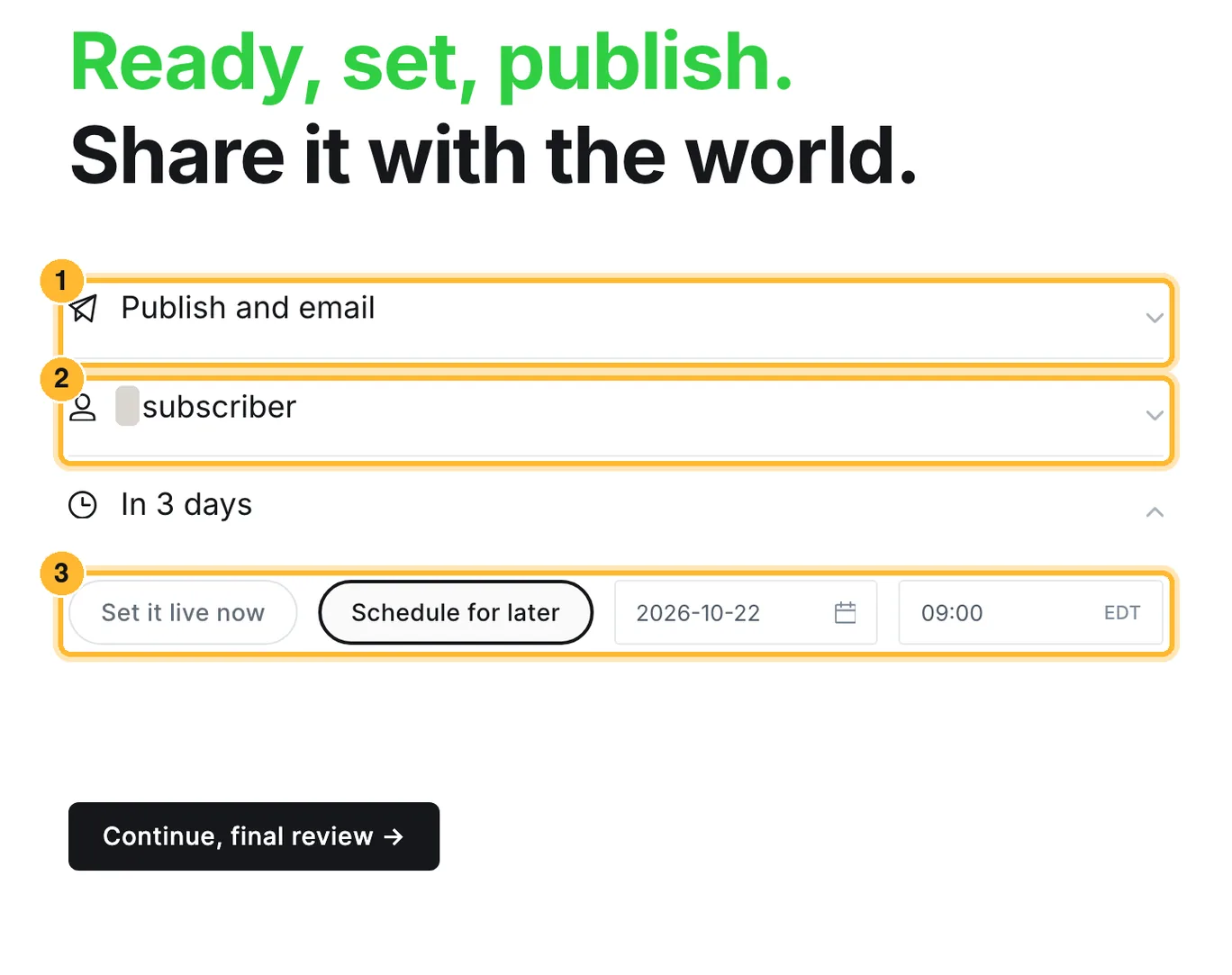
Publish screen set to Publish and email, to all subscribers, scheduled for 22 October at 09:00

Close the preview and click Publish.

  1. Leave the first line on Publish and email. This is the only time you do.
  2. The audience is all subscribers of The Brief. The count is hidden in this guide.
  3. Open Right now, pick Schedule for later, and set the date and 09:00: Monday for events, Thursday for news. Times are Eastern.

Then click Continue, final review.

11 · Send The Brief

Check the last line, then schedule

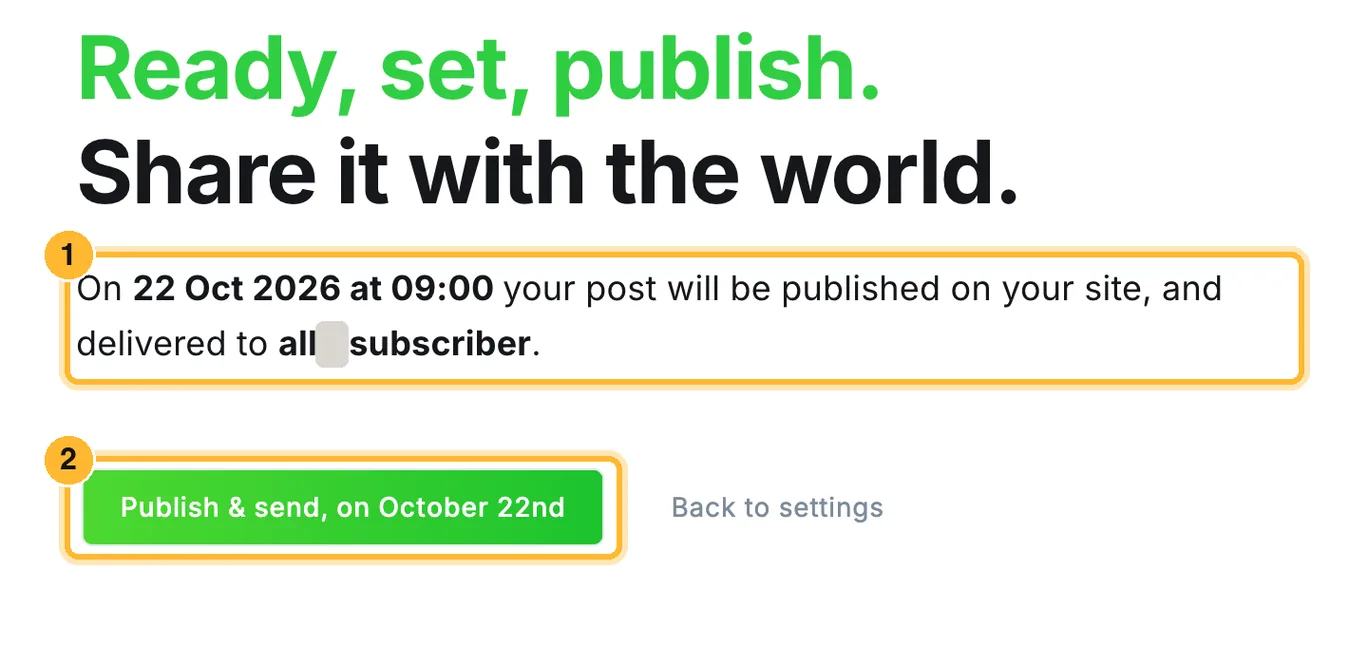
Final review saying the post will be published on the site and delivered to all subscribers on 22 October at 09:00, with the Publish and send button marked
  1. Read the line: the date, 09:00, and delivered to all subscribers. If it says the post will only be published on your site, click Back to settings and fix the first line.
  2. Click Publish & send. The issue is now scheduled, not sent.

Until 9:00 it waits under Scheduled (section 06), where you can open it to fix a typo or change the time.

After it goes outThe email can't be changed. Editing the issue and clicking Update fixes the copy on the site only.